
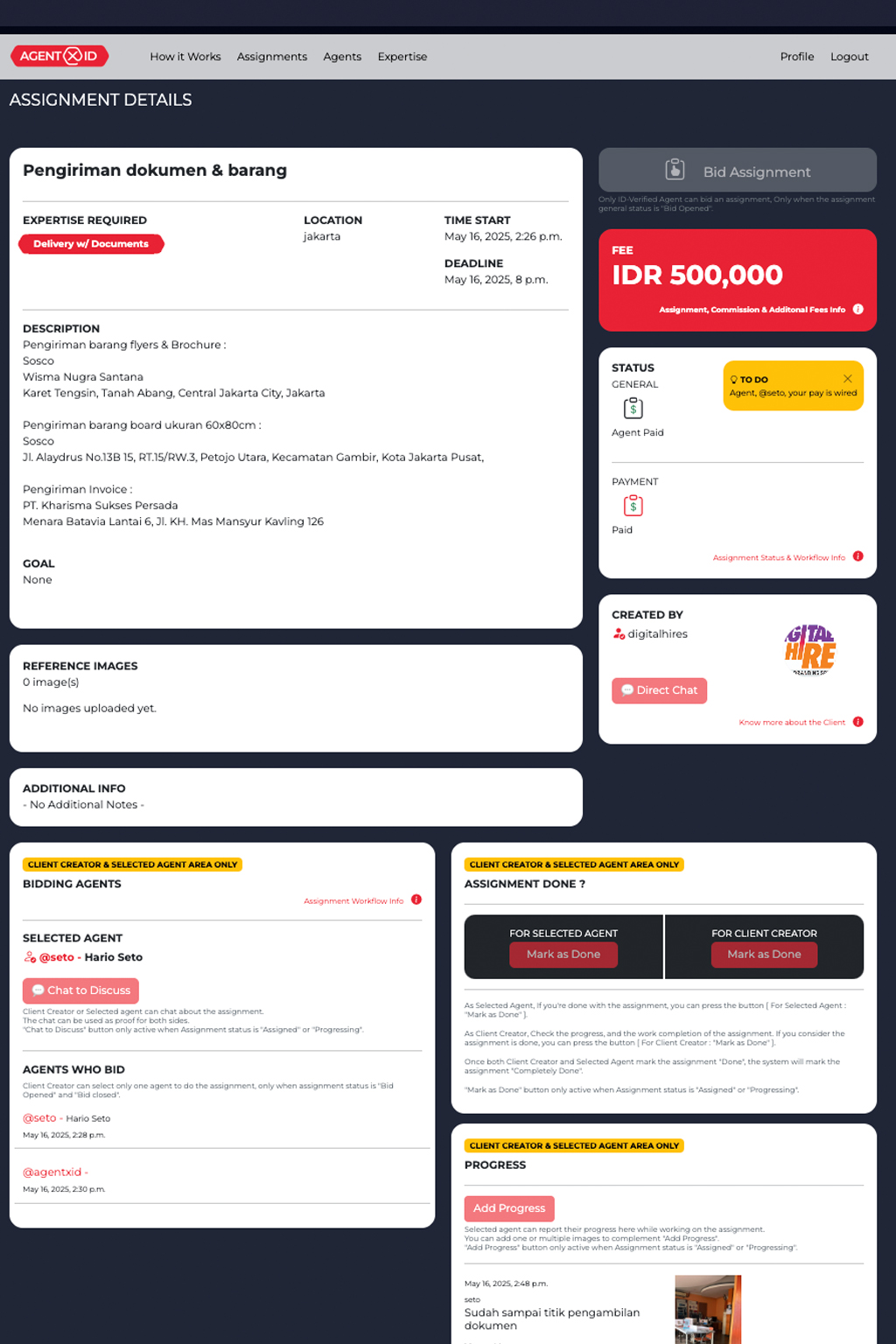
ASSIGNMENT FLOW (FOR CLIENTS)
HOW TO START AN ASSIGNMENT AS CLIENT
JOIN AGENTX.ID - COMPLETE YOUR PROFILE & GET VERIFIED
NEW ASSIGNMENT
To create an Assignment, you must join AgentX.ID.
Complete your Profile
Verify your ID and Tax ID
If you have difficulties, ask Admin for help to complete these steps.
2. CREATE AN ASSIGNMENT - COMPLETE THE FORM
STATUS: ASSIGNMENT CREATED > ASSIGNMENT APPROVED
Go to your Profile page >
Assignment tab >
Create Assignment.
Complete the form:
Title, Description, Start–End Date, Budget (Fee), Location, Goal, Reference Images, Additional Notes.
3. PAYMENT
STATUS : ASSIGNMENT PAYMENT REQUIRED > PAYMENT PAID
On the Assignment page >
on Status section:
Click Create Invoice
Refresh the page
Click Check Invoice
Proceed to payment
4. BIDDING
STATUS : ASSIGNMENT OPEN BID TO CLOSED BID
After payment is completed, the system will open the Assignment for bidding.
Agents will place bids on your Assignment. Review their profiles, then choose the agent who fits best.
5. AGENT WORK
STATUS : ASSIGNMENT ASSIGNED > COMPLETED
The agent you choose will start the assignment.
You can coordinate via chat and monitor progress on the Assignment page.
6. COMPLETION
STATUS : ASSIGNMENT COMPLETED
The agent can press the DONE button when they believe the work is finished.
As the client, you can review the work and press DONE as well.
Once both sides press DONE, the Assignment is 100% complete.
7. AGENT PAYMENT
STATUS : AGENT PAID
After the Assignment is 100% complete, the agent will receive the payment after deductions (local tax, platform fee, etc.).
Review the deduction details on the relevant page.